


 1383
1383
Cancel a Requisition With or Without PO
This procedure describes how to cancel a requisition with no purchase order, and a requisition with an open purchase order.
Case1: To Cancel a requisition with no purchase order
-
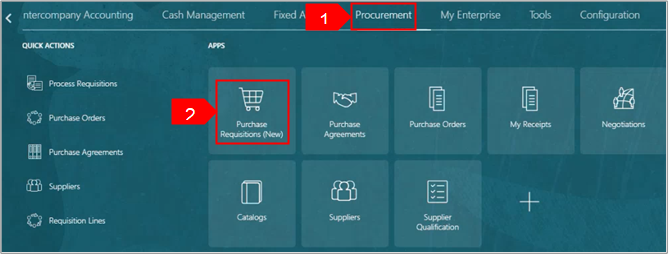
On the Oracle Cloud homepage, Select Procurement.
-
Click Purchase Requisitions (New).
-
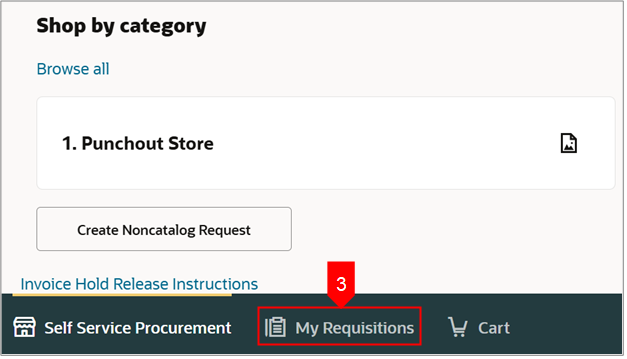
Select My Requisitions.
-
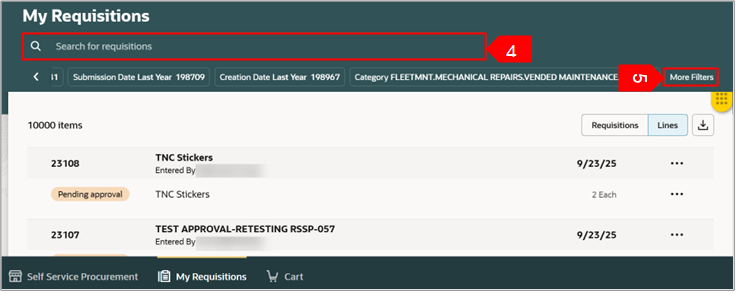
Search for the requisition in the Search bar.
OR
-
Use More Filters to view filter for specific requisition.
-
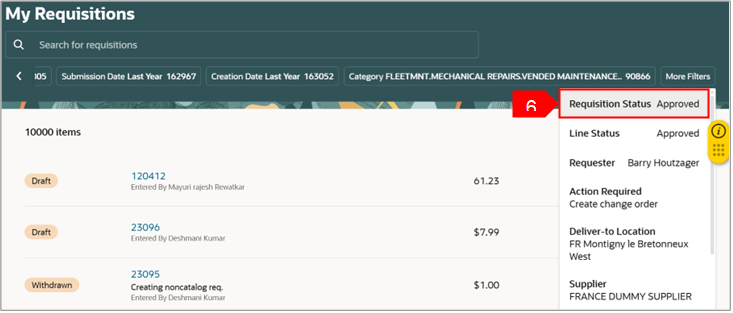
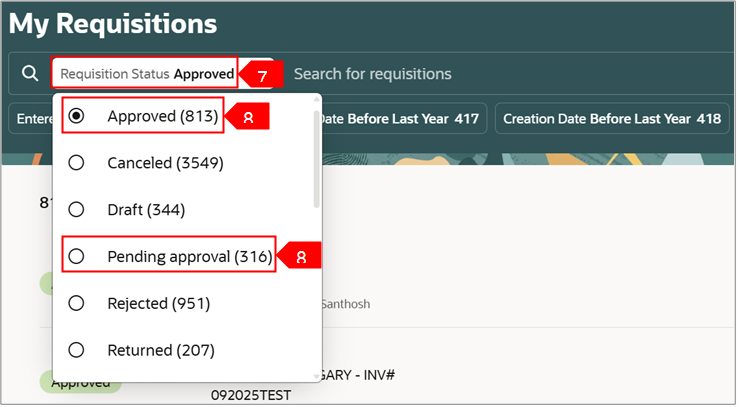
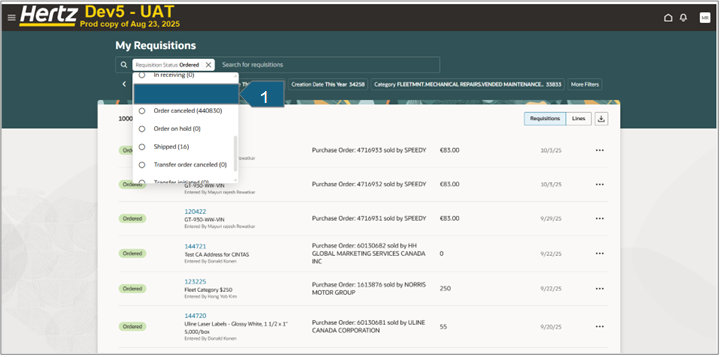
Select Requisition Status Approved from the list.
-
Select the chosen filter and a list appears.
-
To cancel a requisition, it should be in either Approved or Pending approval status. Select Approved or Pending approval.
-
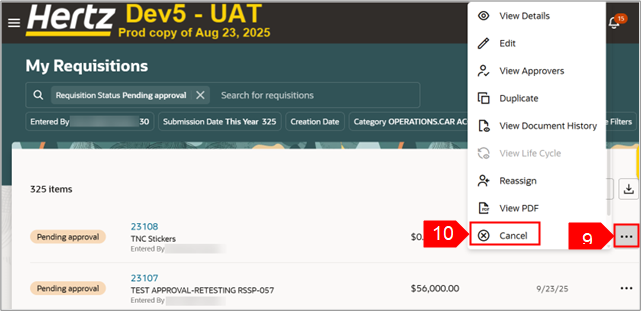
Select the Ellipsis icon (three dots) against the chosen requisition.
-
Select Cancel.
Note: In case, you don’t find Cancel, follow the below steps.
-
Select View Details.
-
Select Ellipsis (three dots) on top right of the page.
-
Select Cancel.
OR
-
Select the Requisition number link directly and follow the above-mentioned steps.
-
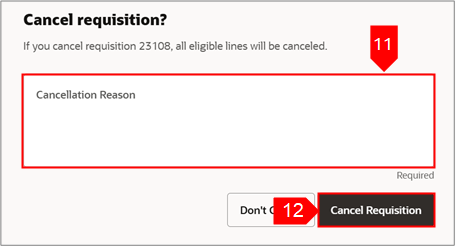
Enter the reason for cancellation.
-
Select Cancel Requisition.
-
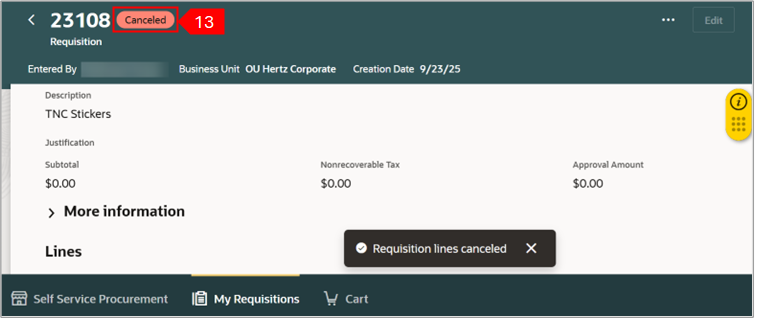
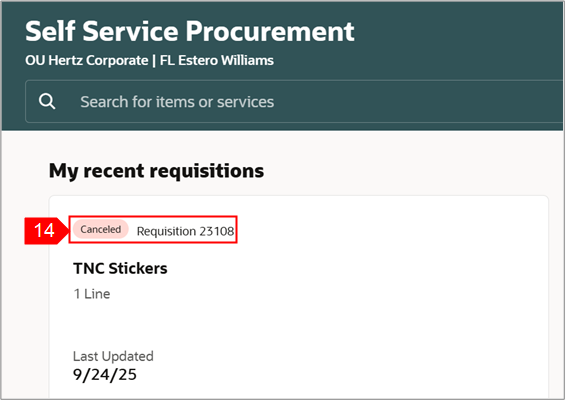
A message appears confirming requisition canceled. You can see the change in status from pending approval to Canceled.
-
View the status of the requisition under My recent requisitions of Self-Service Procurement page.
Case 2: To Cancel a requisition with purchase order.
Reminder: Do not cancel a Punch Out order until you confirm with the supplier. Once a requisition with a PO is canceled, it cannot be undone.
A new REQ-PO will be required.
To Cancel a requisition with purchase order, follow the steps from step 1 to 8 of Case 1 and then continue from here.
-
To cancel a requisition with PO, requisition should be in Ordered status.
-
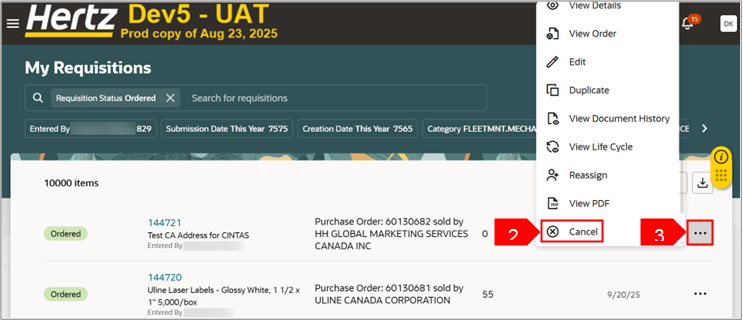
Select Ellipsis icon (three dots) against the chosen requisition.
-
Select Cancel.
-
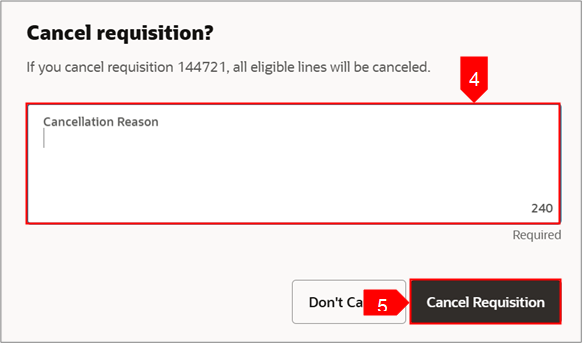
Enter the Cancellation Reason.
-
Select Cancel Requisition.
-
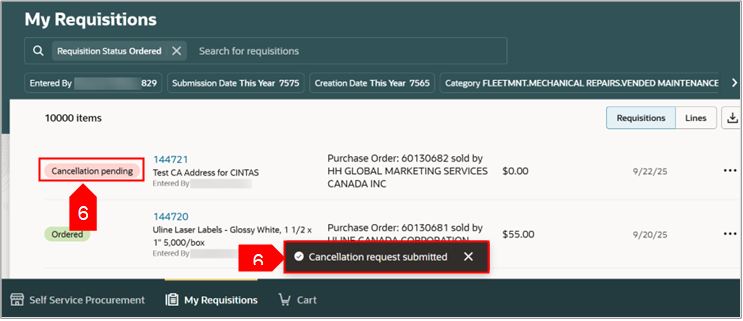
A message pops up confirming the requisition submitted to be canceled. The status will change to Cancellation pending, which eventually will change to Order Canceled.
-
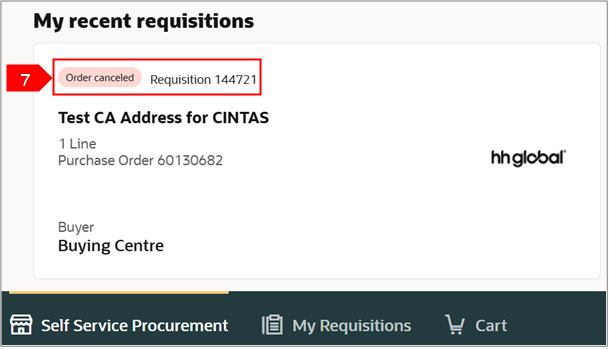
You can view the status of the requisition as Order canceled under My recent Requisitions of Self-Service Procurement page.
This completes the Cancel a Requisition With or Without process.
See attachment to download a copy of this guide.


