


Order Life Cycle View from Purchase Requisitions
Order life cycle shows the receipt and invoice details that have been processed against the PO. Use this view to investigate Oracle hold alerts.
Select Procurement.
Select the Purchase Requisitions (New).
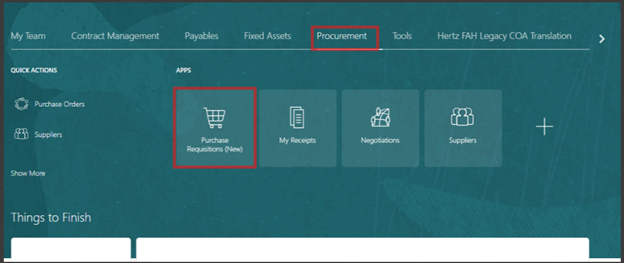
Select My Requisitions.
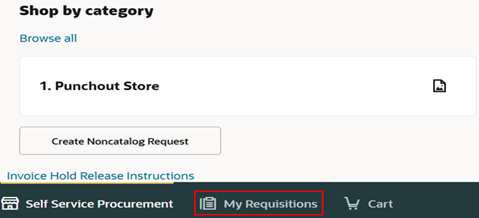
Use the Search bar, enter the requisition or PO number. Use quote marks around the REQ or PO this will define the search to this specific number. This will work any searchable detail. Use the redefined filters, the ellipsis (three dots) has additional filters

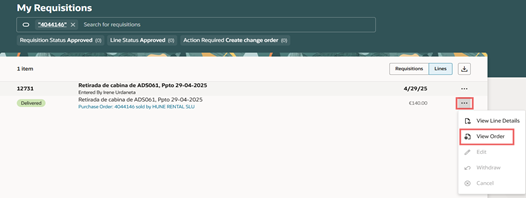
Once the requisition populates, there are two sets of ellipses (three dots) indicate REQ header and line. From the REQ header, select View Life Cycle or from the REQ line select View Order.

View Life Cycle
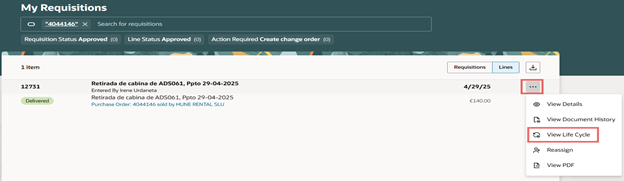
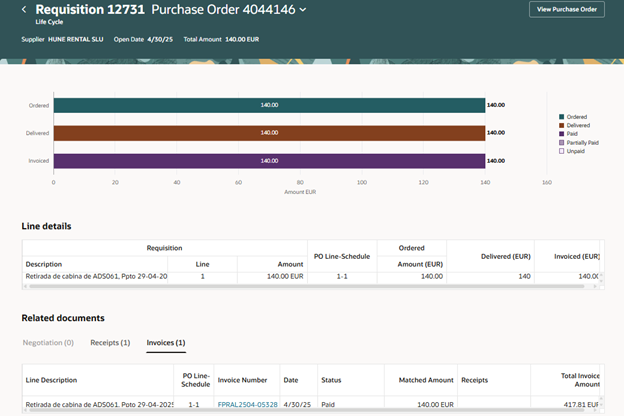
This selection takes you directly to the view that shows the receipt and invoice details.
When View Order is selected from the REQ line.
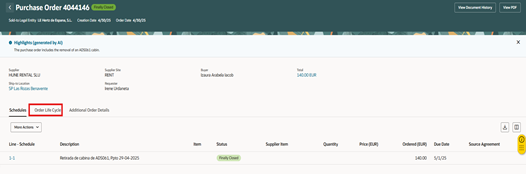
Summary PO details will populate, click on Order Life Cycle
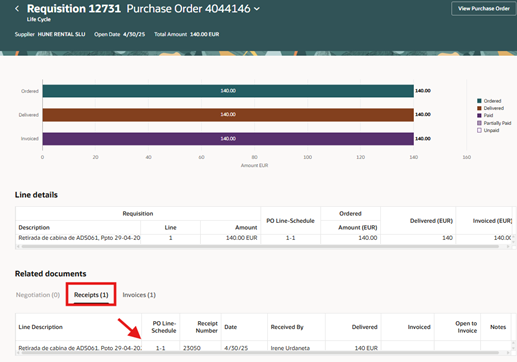
To view receipts, ensure receipt tab is selected
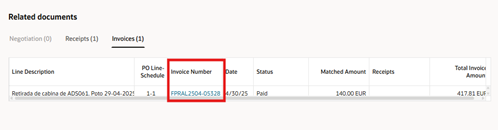
To view invoices, ensure the invoice tab is selected
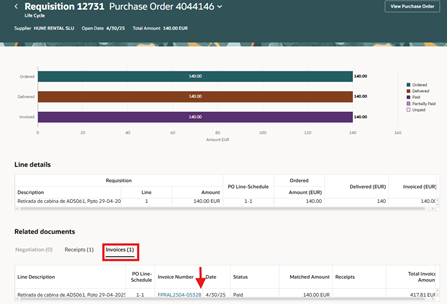
View the invoice details, select the invoice number in blue, this is a hyper link.
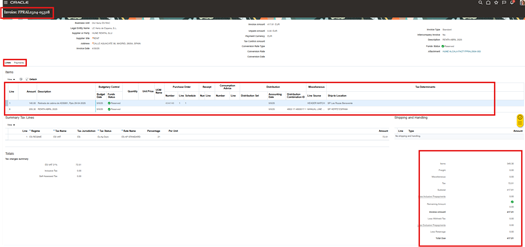
Manage invoice screens will open in a new browser tab, view the invoice, click on the payments tab to see the payment due date and payment number details.
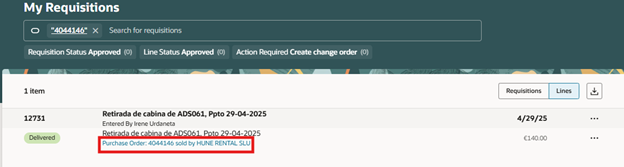
Additional option is to click on the PO number in blue, this is a hyperlink.
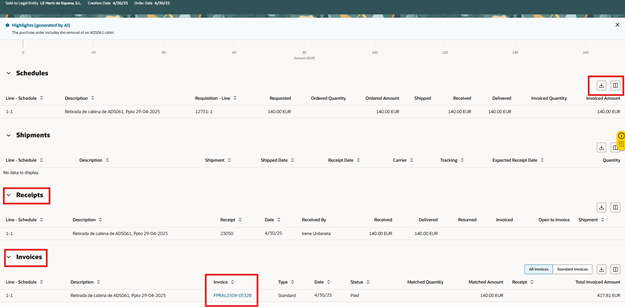
Summary page will display the PO details, receipts and invoices. The icons on the top right allow the export of data  or customize the columns.
  .
.
This completes the Order Life Cycle Viewing process.
Attached is a copy of the guide to download.


