


How to obtain Oracle requisitioner access
Navigate to Hertz SharePoint site: https://hertz.sharepoint.com
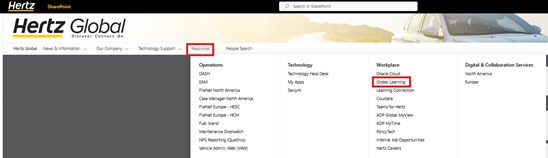
Select Resources, under Workplace, select Global Learning
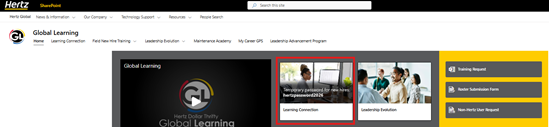
Select Learning Connections
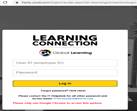
Log on with your employee number and password set up when newly hired.
If you do not have a username/password, contact IT at [email protected]
Once you are logged in, use the search bar and type in Oracle Requisitioner 102, select the language

Select Launch
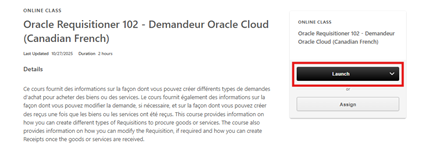
If the class shows Request, you have most likely taken the training.
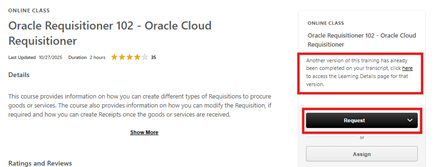
If you think you have taken the training, go to your completions, locate the training and save pdf.
If you need assistance contact [email protected]

Upon finishing the course, save Certificate of Completion as a pdf.
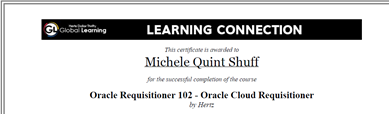
It is required to attached to the Saviynt Oracle access request.
Follow the steps below to submit your access request.
Saviynt Log On
Ensure you are logged into the Hertz network
https://myapps.microsoft.com (using your hz########@hertz.net username and password) to access Saviynt. There you will see a page of tiles for each Hertz application:
Go to MY apps My Apps (microsoft.com)
Note: If you logged onto the Hertz network, Saviynt will automatically log in. Hertz network is typically email: hz########@hertz.net username and password (single sign on PW)
Click on Saviynt
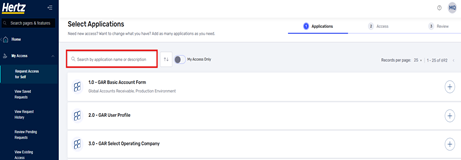
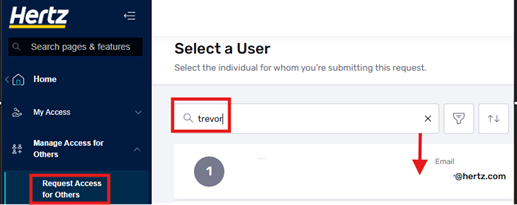
On the side pane, open the drop-down arrow at MY Access, select request access for self or under Manage Access for others, use drop down arrow, select request access for others
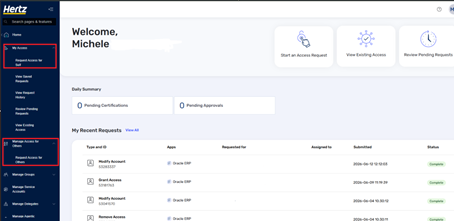
For Self: within the Search bar, type in Oracle ERP
For Others: locate the person and select. TIP: enter the employee ID instead of the name, results pull in exact match
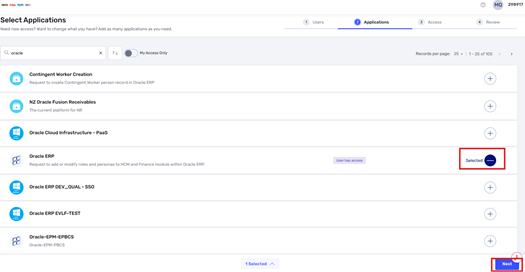
Click the Oracle ERP tile

Click on Add or Modify Existing Account,
Select a Module from drop down, click on Finance Persona Access
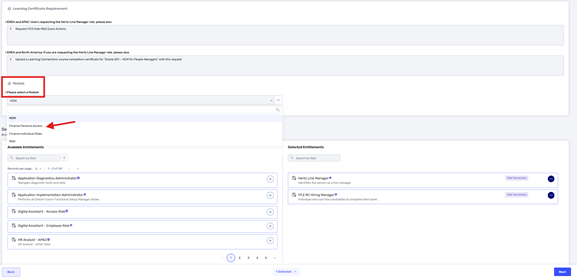
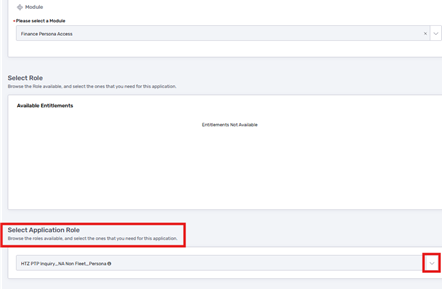
Finance Persona Access:
All new request to have access to create requisitions, process receipts, view the PO and invoices, search for “HTZ Procurement requester_ (country code). Ensure you pick the business unit where you will be ordering examples: US, CA, NA=US &CA, UK, DE, FR etc. Next look for Fleet, Non-Fleet, or both type roles to review what access is provided hover over the “i” icon.
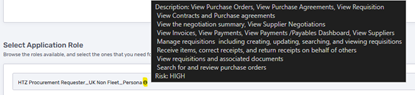
Examples of procurement requester personas:
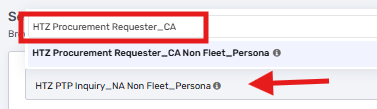
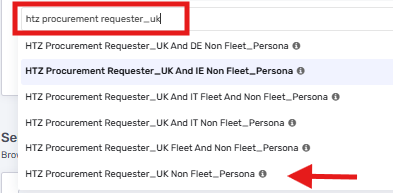
Search: HTZ Procurement Requester_
Select the Country code
Select either Fleet and Non Fleet or Non Fleet
Note: Fleet is directly related to the purchase of vehicles, Non Fleet is the support of vehicles
United States

Canada
United Kingdom, combination with other countries are available
If all Europe is required, type in Global
North America (CA/US)
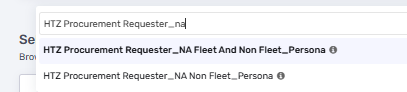
Once the access is selected, click the Next button.

Enter the justification, comments, add the Learning Connections certificate in the attachments box.
Check the box you confirm the request and have reviewed it, Click Submit
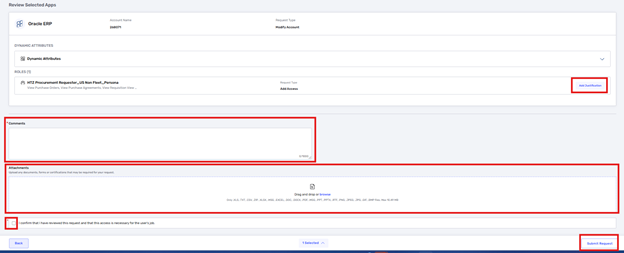
A Saviynt Request number will be generated, and the request will be routed to your immediate supervisor for approval.
Depending on the Persona additional an approver is required. Once the request is fully approved, access should be granted within a few hours.
Click on the attachment below to download a copy of this guide.


