


PO Category Natural - Sub Account Use, Overview and Update
The PO category is used by Procurement and Finance for reporting and cost assignment.
It is important to use the correct category name as it assigns and defines the Natural and Sub accounts required for that product or service.
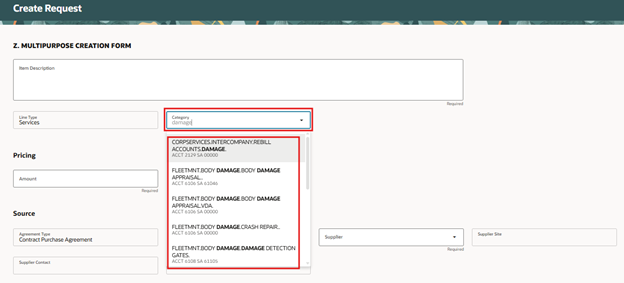

Each month the PO category list is updated and posted to our SharePoint site:
Global Procure to Pay, find under “Frequently Requested Lists”.
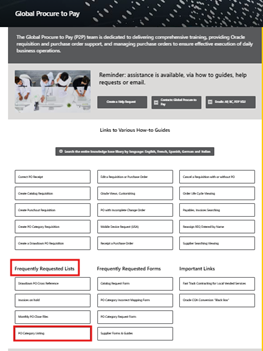

How to use the PO category listing: Save the file, use the filter for item category, to search on a keyword, such as lubricant, or use the filter for the NA or SA columns, to search by the number to locate the category name. Note: the end date in column E means the category is no longer in use.


Please discontinue the practice of changing the Natural and /or Sub account to use numbers that do not match available PO categories. If you cannot locate a match, please request a new PO Category. The PO Category Request form is on the Global Procure to Pay site. Note: PO categories are global, and we must ensure they meet the requirements for the entire global team, Procurement and Finance approve all requests.
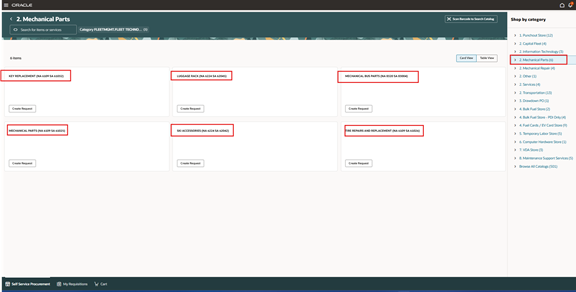
In North America (NA) and European regions (EMEA) there are preset requisitions (REQ) forms that are tied to PO category. Shop by category: the number 2 denotes REQ by PO category. If you cannot locate the REQ form with the PO category you require, use the multipurpose REQ form found in “other” folder. This REQ form has an open PO category field.
OU Hertz ES RAC OU Hertz Rent A Car US
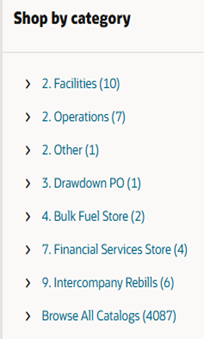

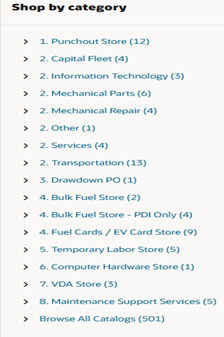
View of the OU Hertz Rent A Car US: Mechanical Parts, the description is based on PO category name and lists the natural / sub (NA SA) account that is tied to the PO category.
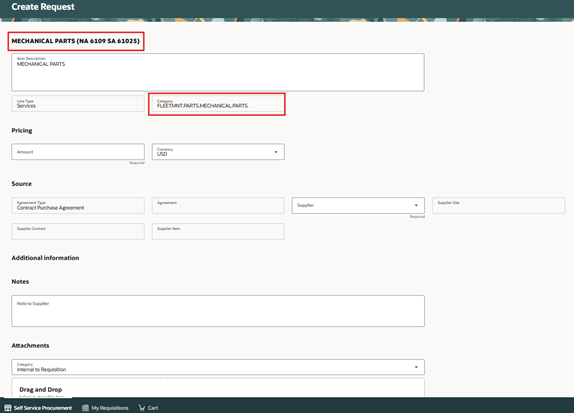
Once you click on the form, you will see the assigned PO category.
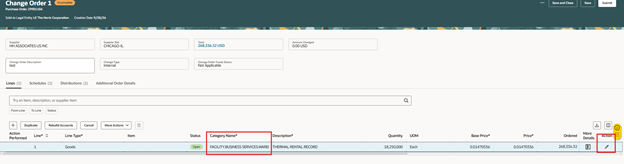
When asked to update the NA SA account code and the REQ has been approved to a Purchase Order (PO).
The PO should not be received or invoiced.
First locate the PO category for the requested NA SA number. Use the edit process and fix the PO category on the line.
Next, select the distribution tab to update the natural and sub account based on the PO category.
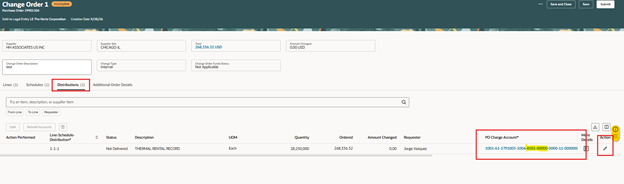
Once done add the description note, select Save, select Actions, select Validate (checks errors).
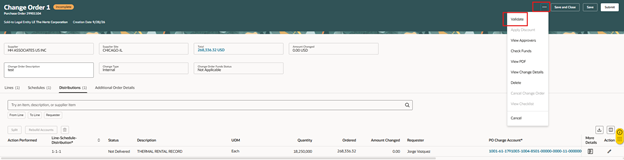
When this error is shown, it means the PO has been partially or fully invoiced.


If the PO has been partially invoiced, you can correct the PO Category and update the NA SA but you need to add a line to the PO.
If the PO is received but not invoiced, you must correct it to zero to update the PO category.
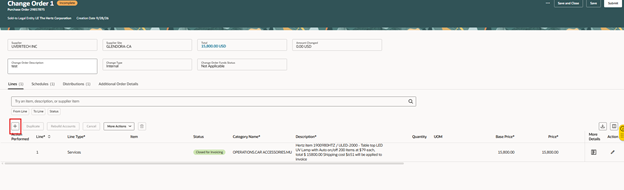
Before making any changes: Write down PO total and the invoiced amount, subtract the invoiced amount from the PO total, this is the remaining amount on the PO.
Note: if the distribution already has multiple lines, refrain from editing. The PO cannot be correctly edited since there is no visibility on how AP has applied the invoices to the distribution lines.
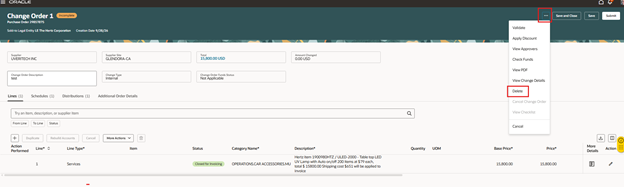
When you encounter errors and are unsure how to correct, select 3 dots, delete to remove the change order.
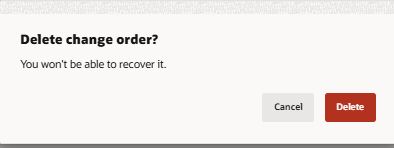
Check the note, confirm it states delete change order, select Delete.

Contact [email protected] or regional Buying Centre's to ask for assistance.
This complete this training guide, to download a copy see the attached word document.


