


Edit a Requisition Or Purchase Order
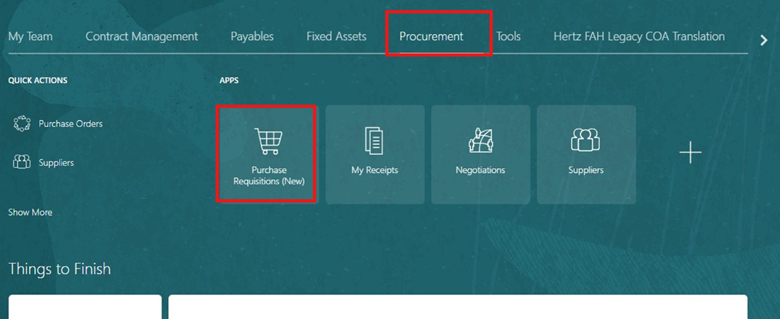
- On the Oracle Cloud homepage, Select Procurement.
- Click Purchase Requisitions (New).
-
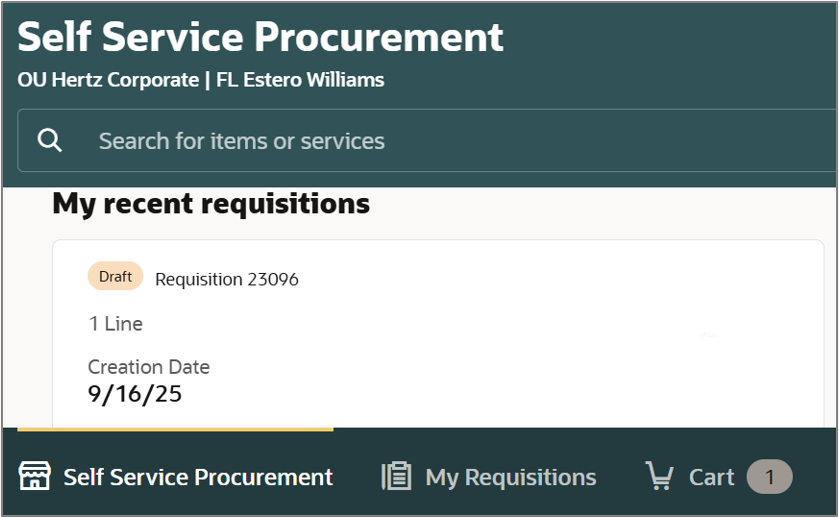
Select My Requisitions
-
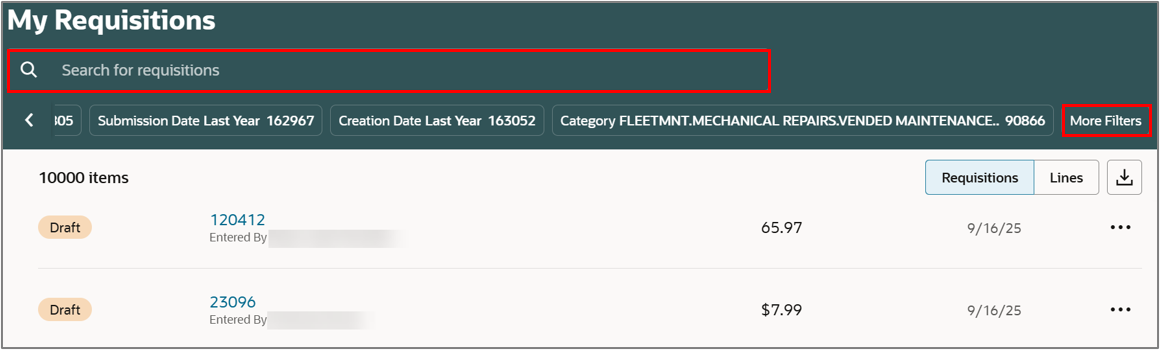
Search for the requisition in the Search bar.
OR
-
Use More filters to filter for a specific requisition.
-
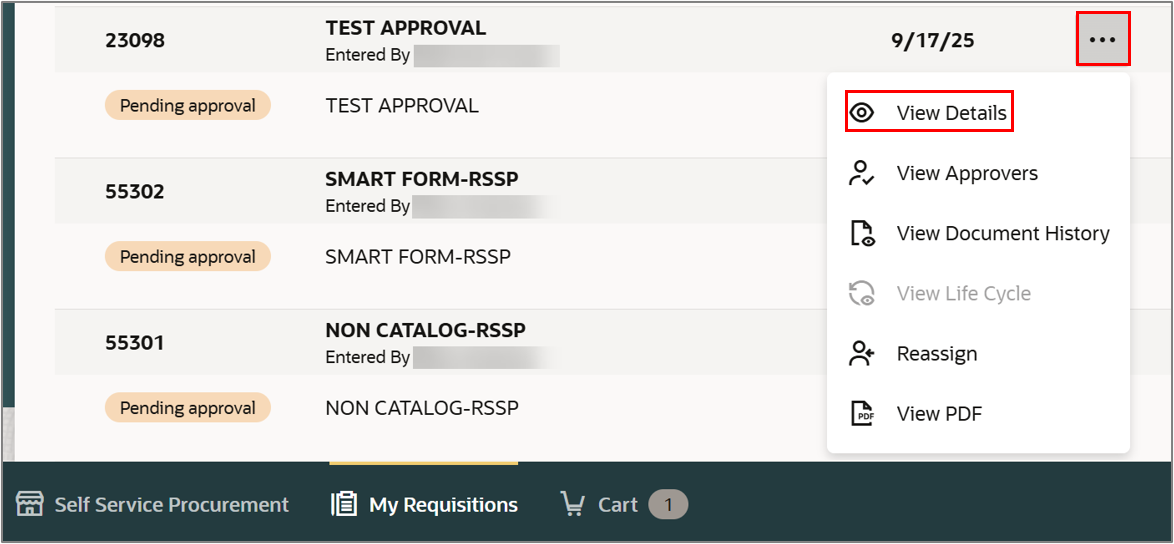
Select Ellipsis (three dots) against the chosen requisition.
-
Select View Details.
-
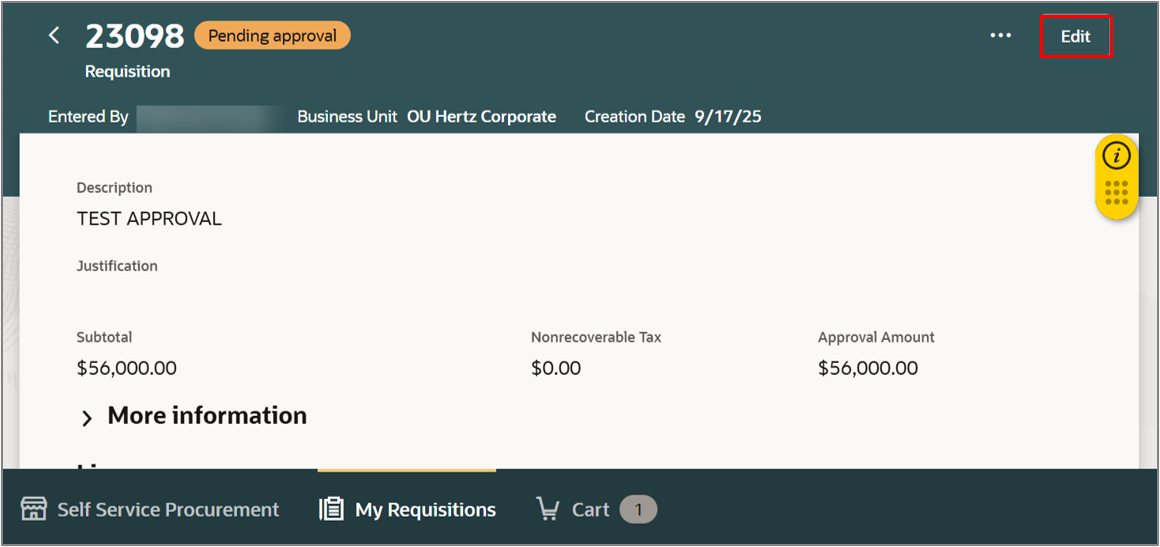
Select Edit
-
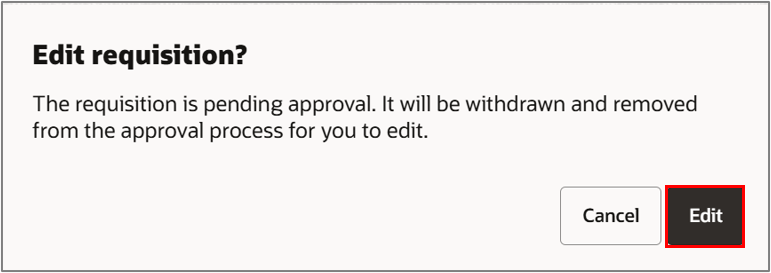
Select Edit.
Note: The requisition is removed from the approval process, or from ‘Approved’ status
-
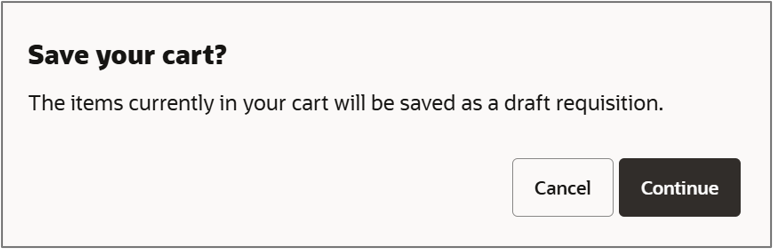
Select Continue.
Note: You will get this message only if you already have existing item(s) in your cart
-
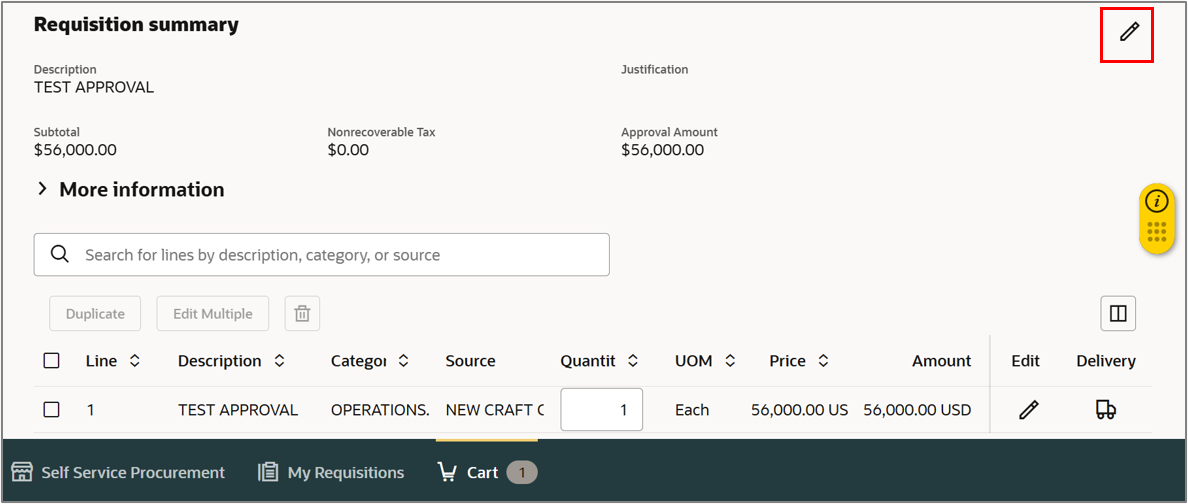
Select Edit icon (pencil) of Requisition summary to make changes at header level
Note: You can also select Edit icon (pencil) against each line to make changes for each line level
-
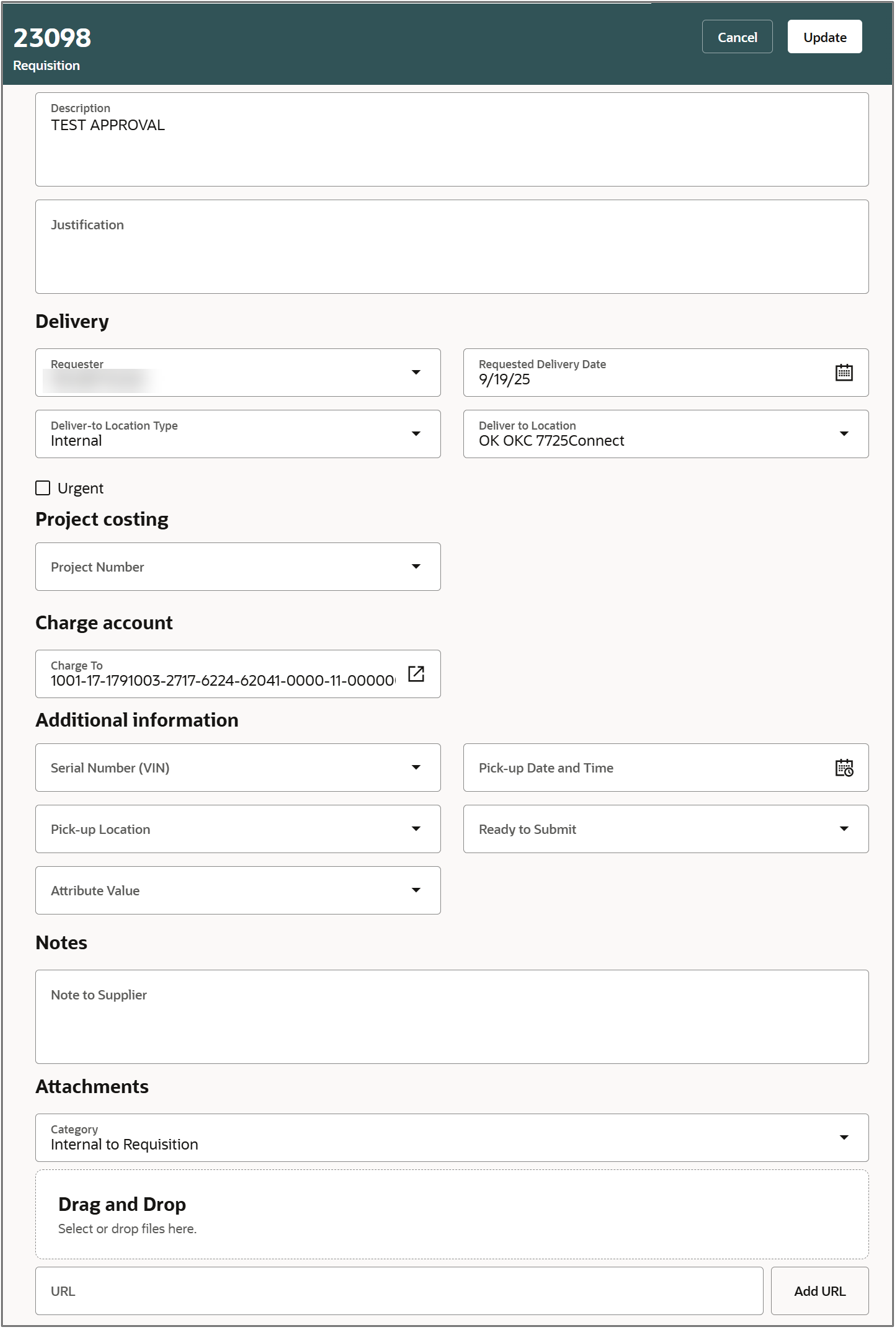
Review or add details: check requester name, deliver to location (BU and country must match), update requested delivery date, add note or attachments
-
Select Update
-
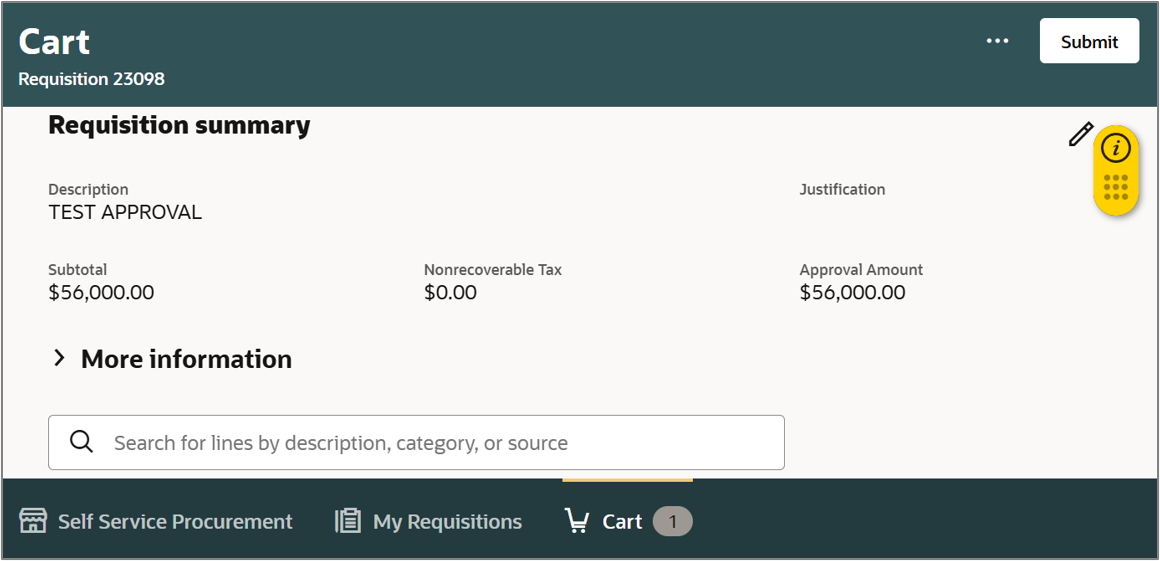
Select Submit
-
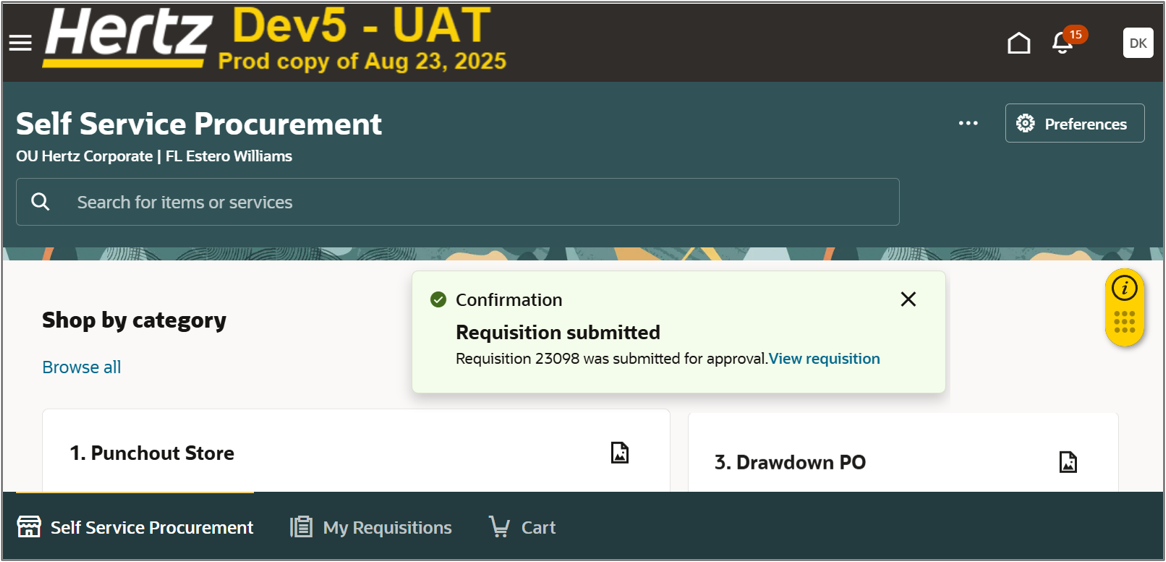
You can select View Requisition to view the requisition when a confirmation message appears
You can view approvers and document history also.
-
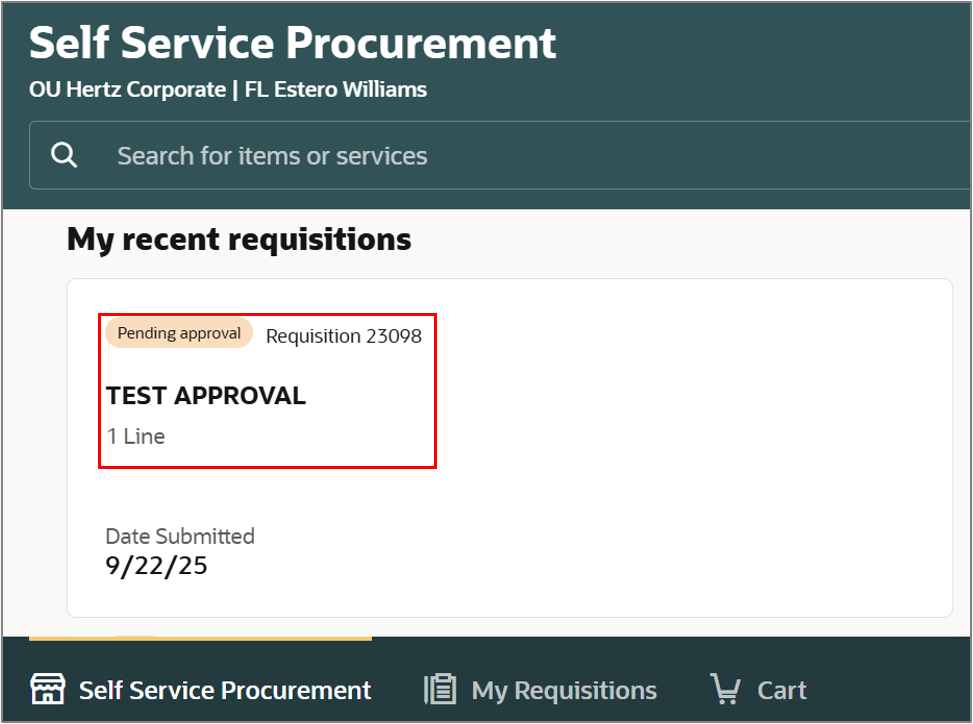
Select the requisition under My recent requisitions to view the requisition
-
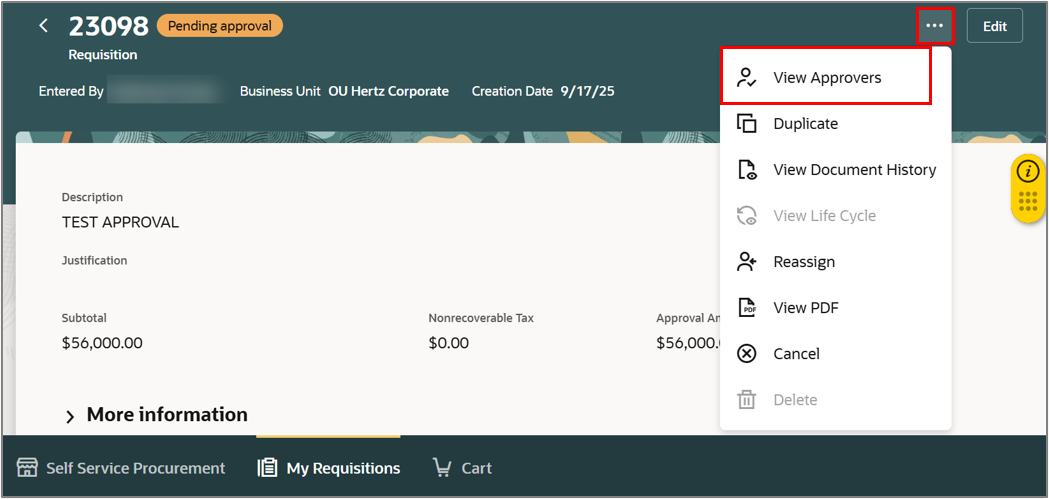
Select Ellipsis icon (three dots)
-
Select View Approvers
-
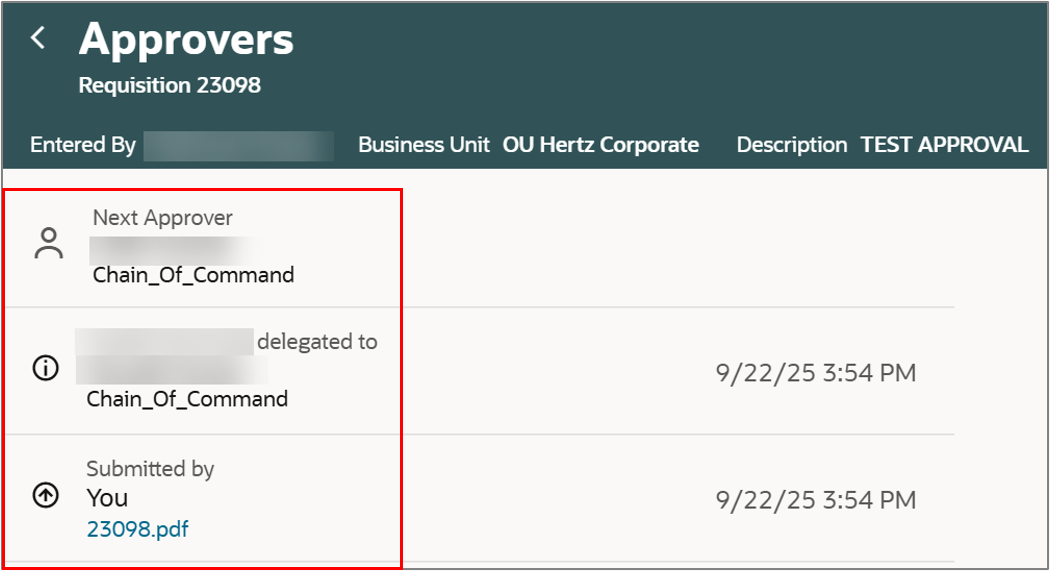
You can view list of approvers
-
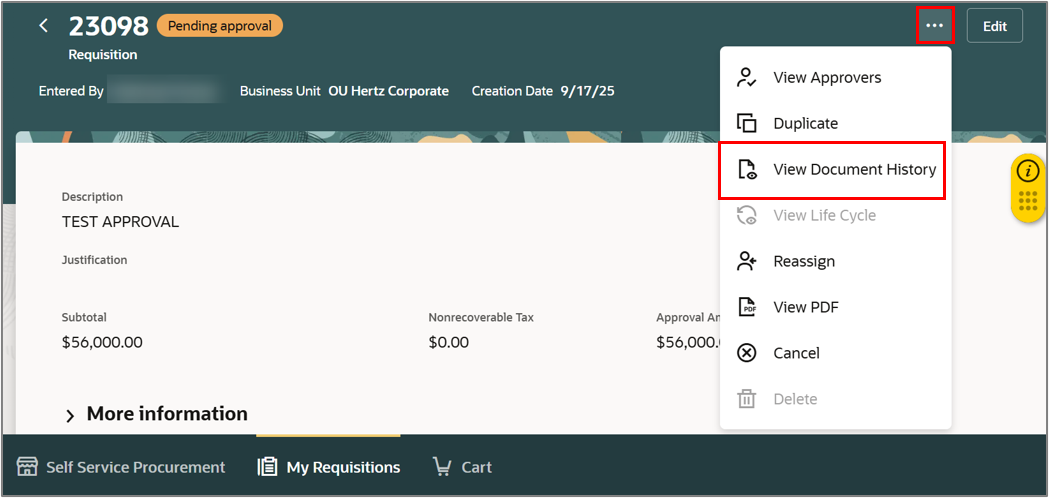
Select Ellipsis icon (three dots)
-
Select View Document History
-
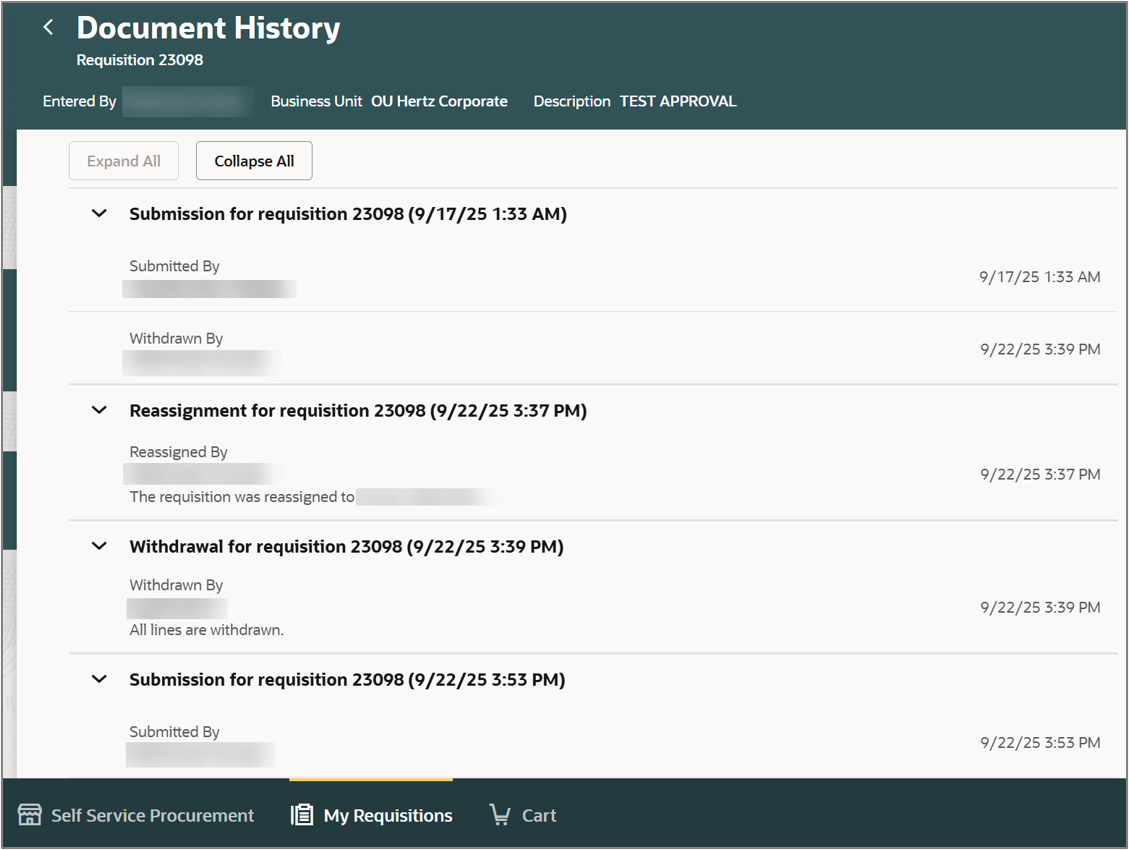
You can view the history of the document.
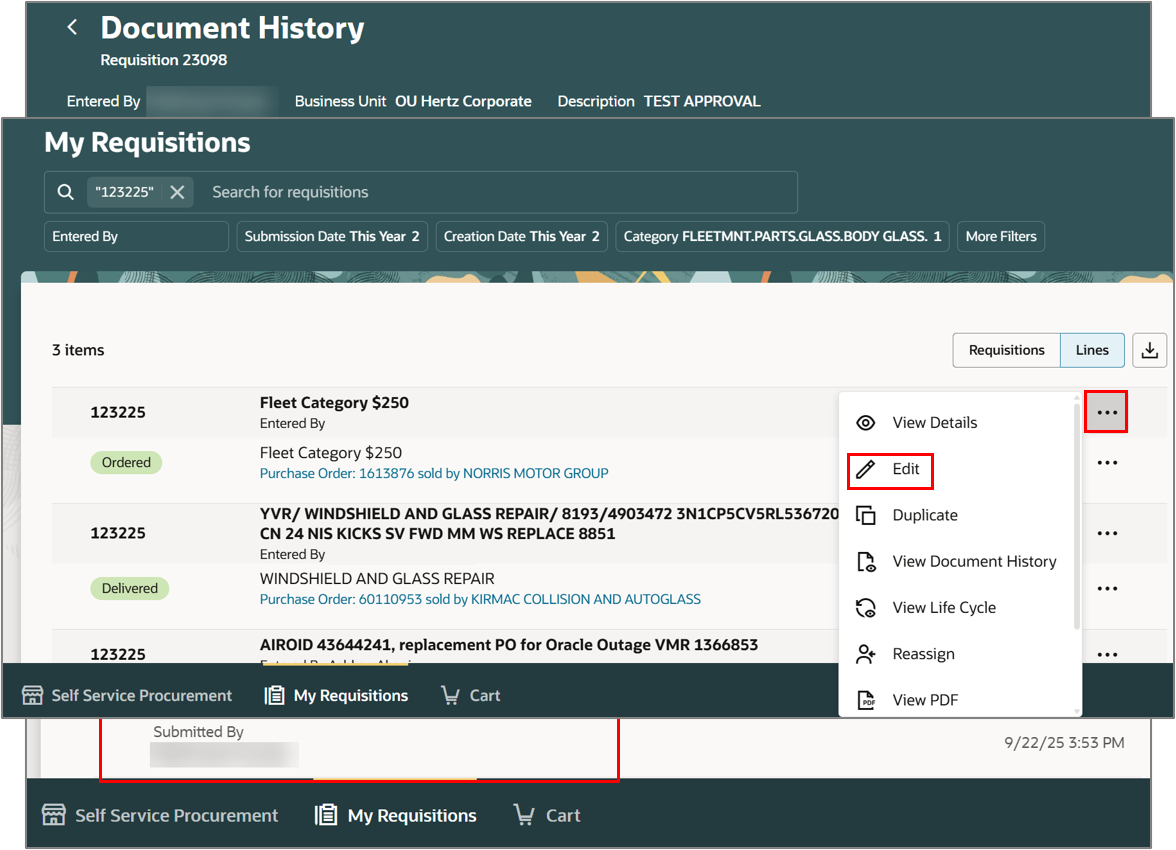
Edit a Requisition with a PO. Search for the requisition or PO in the search bar under My Requisitions
-
Select Ellipsis
-
Select Edit
-
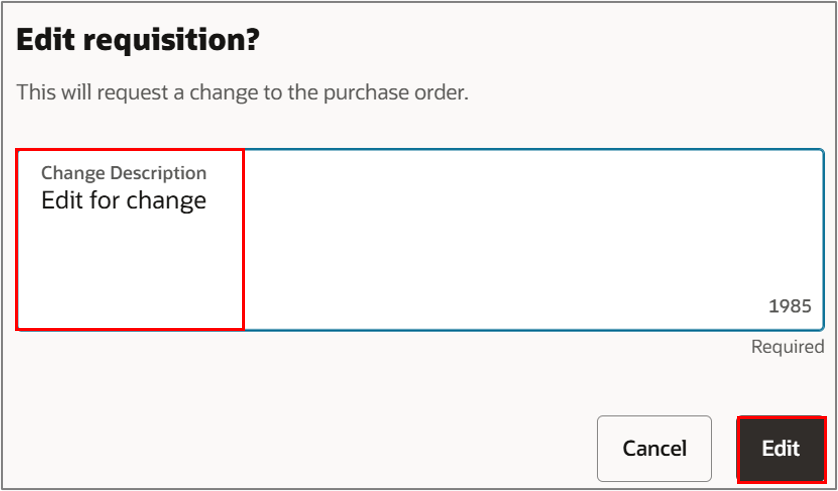
Enter Change Description
-
Select Edit
-
Change the Quantity, if needed
-
Select Submit
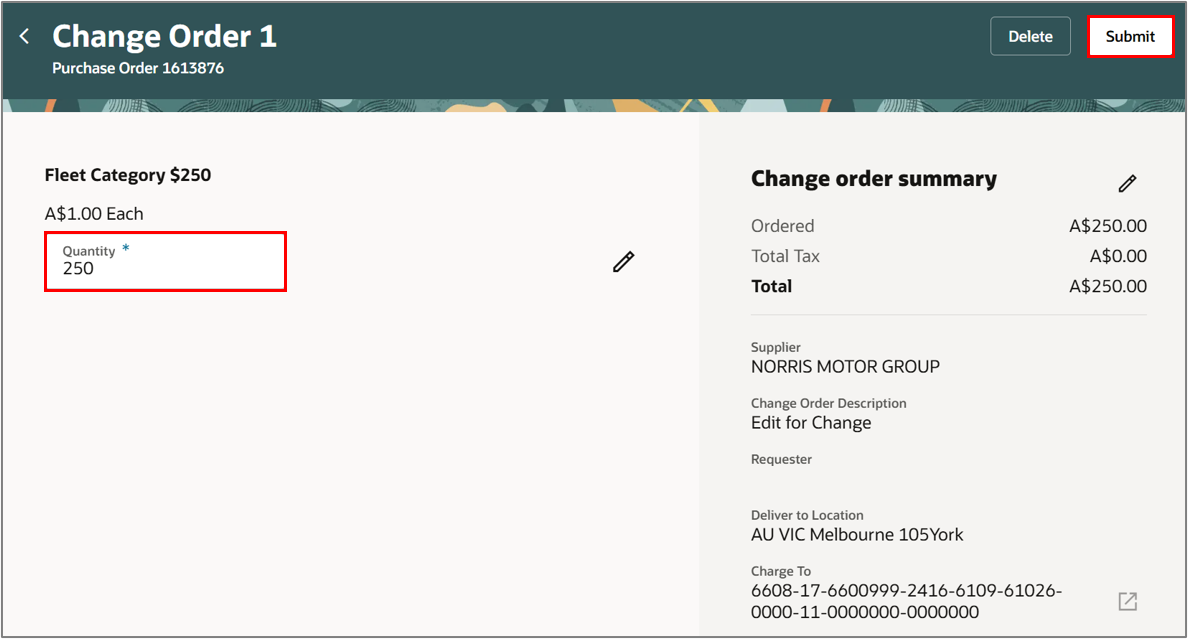
This completes the Edit Requisition OR PO process.
See the below attachment to download a copy.


