


Procurement Supplier Set Up Tips

Jan 21, 2026
 68
68
- Submit VSU requests as normal priority. VSU typically responds in 1-2 business days. Avoid using high priority unless absolutely necessary, as it could detract from the agreed upon contract terms with our BPO supplier. Be sure that adequate VSU set up time is included in RFQ/Contract processing time. Start this process early, as some supplier types may require a DDQ which can add additional time (~1-2 weeks) depending on supplier responsiveness.
- Create a login for the VSU portal to easily track open tickets.
- Refer to the VSU SLA and escalation contacts here: VSU Escalation
- To view suppliers, check in Oracle or use the VSU master file report.
- Oracle Supplier Viewing guide: Supplier Searching and Viewing
- Weekly supplier report: Active Oracle Suppliers
-
- If you need specific pay terms, request them in the VSU note section. When pay terms are not provided VSU will use the standard pay terms based on the pay group. For changes to supplier pay terms, specify in the notes what needs updating:
- New POs only?
- Existing open POs?
- Or POs within a specific time range?
- When creating a contract, verify that pay terms in the Supplier master record match the contract. If not, request VSU to update them.
- Multiple pay terms for a supplier? VSU can create separate sites tied to each unique pay term.
- If you need specific pay terms, request them in the VSU note section. When pay terms are not provided VSU will use the standard pay terms based on the pay group. For changes to supplier pay terms, specify in the notes what needs updating:
- When a supplier requests address change, ask if this is replacing their current address. When you submit the VSU request add in the notes this new address will replace the current address.
- Ensure the supplier template is filled out completely and that each page is signed and dated.
- Page 3 is only necessary for changes, if supplier is new, they can skip this page.
- If the form is not completed in full this will delay requests. Before submitting the form to VSU, check the template is accurately completed with all required fields and is in a non-editable PDF format.
- If a supplier has been inactivated due to lack of use:
- Have supplier complete pages 1-2 of the supplier template with signature and date
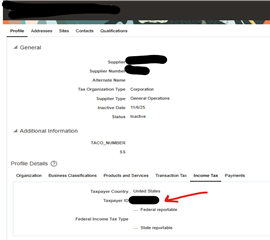
- When the form is returned, confirm that the Tax ID is unchanged
-
- Submit the reactivation request to VSU, using the Reactivate menu
- Select the appropriate Sites/Business Units for reactivation. To view all of them, change the status from Active to Inactive to see details.

To obtain a copy of these tips, see below attachment and download.


