


 114
114
Create Saved Search
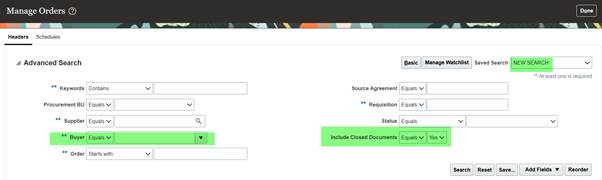
Create a Saved Search by selecting the Save button in the Search Criteria panel after you have entered the criteria for your search.
The Save button will call up the Create Saved Search window where the search is given a name and the user determines whether it should be the default search.
Steps:
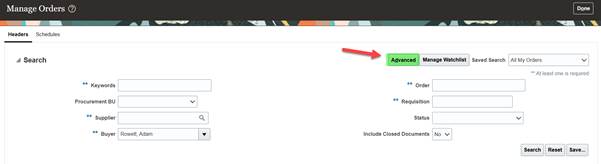
- From <Purchase Orders\Manage Orders>, click the <Advanced> button
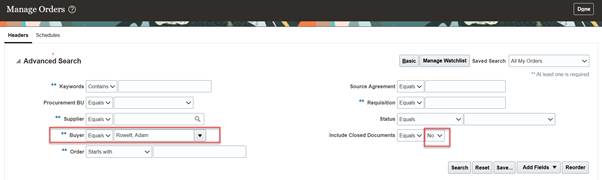
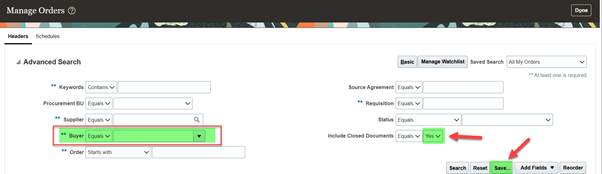
- Remove Buyer name, select <Yes> under Include Closed Documents LOVs and click <Save>
- Type a name for your Saved Search, tick Set as Default box and click <OK>
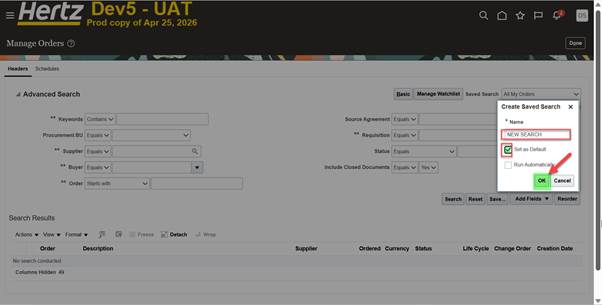
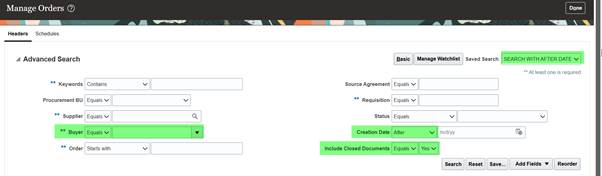
Your Search has been saved and will be your default every time you visit <Manage Orders> page.

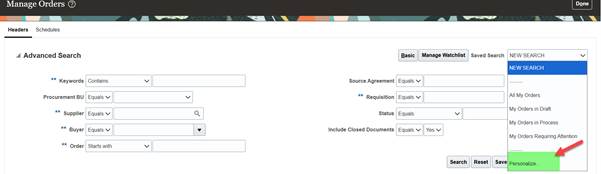
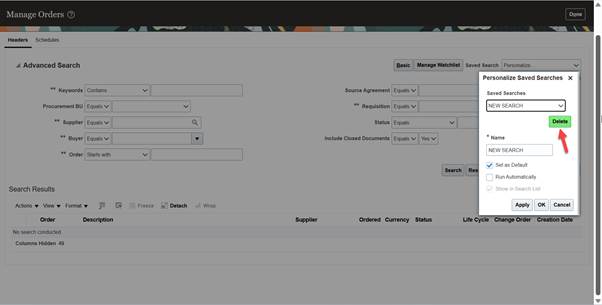
Personalize Saved Search
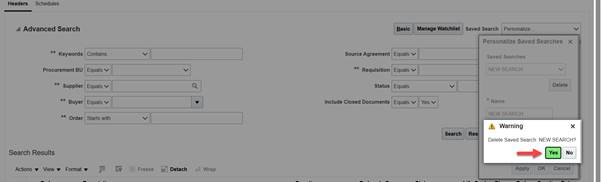
Select Personalize from the Saved Search list to view the personalized saved search. The Personalize Saved Searches pop up allows you to manage your default Search or delete Saved Searches.
Adding fields to Saved Search
To include additional fields in a new or already existing Saved Search:
- Click on <Add Fields> button and select additional parameter to be added to your Search
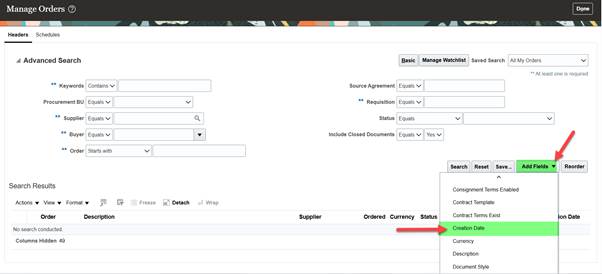
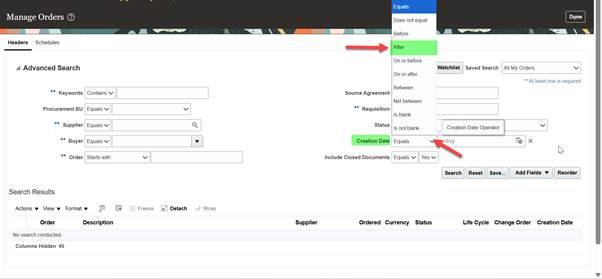
- Select condition or data criteria and save your Search
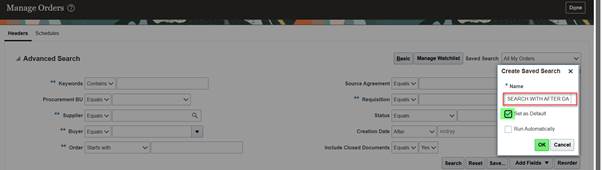
Your Search has been saved and will be your default every time you visit <Manage Orders> page.

Attached is the word document to download.


