


Quick Actions Purchase Order Searching
Requisitioner Access Menu Changed
Prior the May 2026 change, the Purchase Agreements tile was included on the main menu.
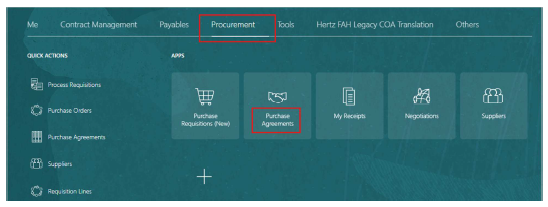
Updated Navigation Process
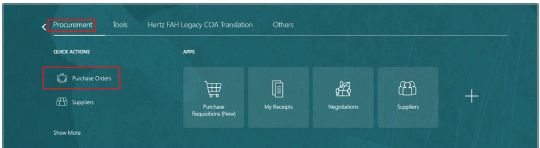
After the change, the Purchase Agreements tile was removed from the main menu.
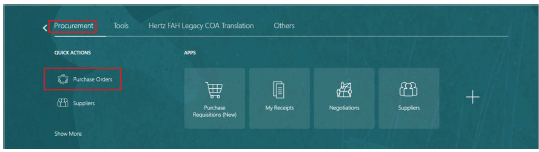
To access Purchase Orders, use Quick Actions and select Purchase Orders to navigate to the Manage orders view.
Perform your search as usual in the PO search screen.
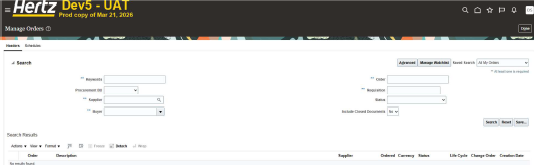
Search results appear on page.
Once you have finished looking up Purchase Order details only option is to return to the home screen.
Select quick action Purchase Order for every PO viewing.
If "done: is selected a blank screen will appear, to avoid click the <Home> button to return to the Main Menu.
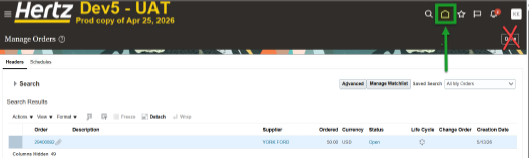
If you click the  icon and see a blank screen and you will then need to
click the <Home> button to return to the Main Menu.
To perform additional PO searches, use Quick Actions > Purchase Orders to navigate back to
Purchase Order screen.
NOTE: It may be more convenient to use the Purchase Requisition APP to view the PO or PO life cycle.
See how to guide: Order Life Cycle Viewing
Attached is word document to download for later viewing.


